KnottyPlanners 💍🎀
KnottyPlanners is a desktop app for wedding planners, optimised for use via a Command Line Interface (CLI) while still having the benefits of a Graphical User Interface (GUI). Especially if you are a wedding planner who can type fast, KnottyPlanners can make organising multiple weddings at once a walk in the park! 🌳
If you are a technical user experienced with CLI feel free to jump right into quick start for technical users!. If it's your first time, don't panic; we will walk you through it in this User Guide! 😊
What is Command Line Interface? 🤔
Command Line Interface (CLI) allows you to type text commands to perform specific tasks quickly and efficiently on a computer. For example, type list in the interface and press enter; the user interface will show you all the contacts you have! Simple, right? Don't worry if you are still unsure about CLI, it's very easy to pick it up! 😁
Why use Command Line Interface?
- Efficiency: Perform tasks faster by replacing multiple mouse clicks into a single line of text ✅
- Precision: Avoid mis-clicking and mistakes as the CLI will execute the exact command you type 💯
- Offline: CLI does not require internet and allows you to use it anywhere 👩💻
Table of Contents
- Here's a quick tip! To navigate back to the top of the pdf, use the
Homekey on Windows/Linux orcommand + ↑on Mac. - If you already know what to search for, use
CTRL-Ffor Windows/Linux orCOMMAND-Ffor Mac to find exactly what you need!
Quick Start (Non-technical Users)
Open up the command prompt (in Windows) or terminal (in MacBook) on your computer.
Type in
java -versionand hit enter.If your version of Java is 17 and above, skip to step 6. If it is less than 17, click here to download Java 17.
For Windows users, download the Windows x64 Installer. For MacBook users, download the macOS ARM 64 DMG Installer. Follow the respective installation guides.
After successfully completing the installation, repeat steps 1 to 3 to ensure that you have Java 17.
Download the latest
KnottyPlanners.jarfile under the Assets tab from here.Create a new folder in your Desktop and copy the
KnottyPlanners.jarfile into that folder.Repeat step 1 to open up a new terminal.
Type in
cd Desktop\NEW_FOLDER_NAMEwhereNEW_FOLDER_NAMEis the name of the folder you created in step 7 and hit enter.Type in
java -jar KnottyPlanners.jarand hit enter to run the application.You can refer to the Command Summary for an overview of the available commands. If you need more information, the Features section below contains more details regarding each command.
Quick Start (Technical Users)
Ensure you have Java
17or above installed in your Computer.Download the latest
.jarfile from here.Copy the file to the folder you want to use as the home folder for your KnottyPlanners.
Open a command terminal,
cdinto the folder you put the jar file in, and use thejava -jar KnottyPlanners.jarcommand to run the application.You can refer to the Command Summary for an overview of the available commands. If you need more information, the Features section below contains more details regarding each command.
Note: We have a default database for you to try out and test commands! If you prefer not to have it, you can use the commands clear-ab and clear-wb to clear the address book and wedding book respectively.
Command Summary
Feel free to use this command summary table and navigate to the features that interest you by clicking on the action words. 😁
| Action | Format, Examples |
|---|---|
| Help | help |
| Add | add n/NAME p/PHONE_NUMBER e/EMAIL a/ADDRESS j/JOB [t/TAG] e.g., add n/James Ho p/22224444 e/jamesho@example.com a/123, Clementi Rd, 1234665 j/Photographer t/June & James |
| Delete | del n/NAME followed by y or ne.g., del n/John Doe followed by y |
| Edit | edit n/NAME [new/NEW_NAME] [p/NEW_PHONE] [e/NEW_EMAIL] [a/NEW_ADDRESS] [j/NEW_JOB]e.g., edit n/John new/James Lee e/jameslee@example.com |
| List | list |
| Add Wedding | add-wed w/NAME & NAME v/VENUE d/DATE or aw w/NAME & NAME v/VENUE d/DATE e.g., add-wed w/ John & June v/Orchard Hotel d/12/12/2030 or aw w/ John & June v/Orchard Hotel d/12/12/2030 |
| Delete Wedding | del-wed w/NAME & NAME or dw w/NAME & NAME followed by y or ne.g., del-wed w/John Loh & Jean Tan or dw w/John Loh & Jean Tan followed by y |
| List Weddings | list-wed or lw |
| Add Tag | tag-add n/NAME t/TAG [t/TAG]... or ta n/NAME t/TAG [t/TAG]... e.g., tag-add n/John Doe t/June & James or ta n/John Doe t/June & James or ta n/John Doe t/June & James t/Jeremy & Maya |
| Deleting Tags | tag-del n/NAME t/TAG [t/TAG]... or td n/NAME t/TAG [t/TAG]... e.g., tag-del n/John Doe t/June & James or td n/John Doe t/June & James or td n/John Doe t/June & James t/Jeremy & Maya |
| Filter | filter [n/KEYWORD]... [j/KEYWORD]... or fil n[n/KEYWORD]... [j/KEYWORD]... e.g., filter n/John or filter n/Sam j/Photographer or fil j/Caterer |
| View Wedding | view-wed NAME & NAME or vw NAME & NAME e.g., view-wed John & Sarah or vw John & Sarah |
| Clear Address Book | clear-ab or cab followed by y or n |
| Clear Wedding Book | clear-wb or cwb followed by y or n |
| Exit | exit |
IMPORTANT:
Delete and clear operations in KnottyPlanners:
All delete and clear operations (except tag-del) in KnottyPlanners will be followed by a confirmation prompt to avoid accidental deletion. Therefore, delete and clear operations must be followed by either the y command (confirm delete operation) or the n command (remove pending operation). Otherwise, the previous operation will remain pending and following delete and clear commands may be affected. Hence, if you accidentally mistype or enter an unintended command before confirming, we suggest that you use n to cancel any pending delete operations to ensure everything runs smoothly. 😊
TAKE NOTE: Y and N will be considered as invalid commands as they are NOT the same as y and n respectively.
Parameter Constraints
The table below provides a brief explanation of each parameter encountered in the command summary above. It also details the constraints of each parameter used in a command.
IMPORTANT:
- Please ensure that all parameters adhere to the constraints mentioned below. If you choose not to do so, the command will not be executed and error messages will be shown.
- KnottyPlanners does not accept any empty parameters, hence, please add in a placeholder value that you choose to replace an empty input with (e.g.
p/000ora/nil).
Autoformatting in KnottyPlanners:
KnottyPlanners aligns with industry standards by automatically formatting the
NAME,JOB,TAGandWEDDING NAMEfields.All other fields that are not mentioned above are not formatted and will be saved based on your user input.
For each field:
- The first letter of each word is auto-capitalised.
- Leading and trailing spaces are trimmed.
- Extra spaces in between words are trimmed to 1 space.
Examples:
li siruiis formatted toLi Siruito ensure consistency in the name format.Wedding Photographeris formatted toWedding Photographerto ensure consistency in the job names.Adam & Harryis formatted toAdam & Harryto ensure consistency in the wedding names.
Duplication Detection in KnottyPlanners:
This section details what constitutes as a duplicate in KnottyPlanners. KnottyPlanners uses names to distinguish contacts from one another. However, due to autoformatting, duplicates may not be exact matches and therefore, may not be immediately obvious to you, the user. Each parameter is followed by examples that explains if the input is considered a duplicate in KnottyPlanners.
NAME
Jeremy Ngis equivalent toJEREMY NG,Jeremy Ngandjeremy ng.Jeremy Ngis NOT the same asJeremy Lin.
JOB
Head Chefis equivalent toHEAD CHEF,Head Chefandhead chef.Head Chefis NOT the same asHead Waiter.
TAG and WEDDING NAME
John Stones & Mary Janeis equivalent toJOHN STONES & MARY JANE,John Stones & Mary Janeandjohn stones & mary jane.John Stones & Mary Janeis NOT the same asMary Jane & John Stones.
| Parameter | Prefix | Definition | Case-Sensitivity | Constraints | Examples |
|---|---|---|---|---|---|
NAME | n/ | Name of the person. | Case-insensitive | - Only alphanumeric characters, spaces, /, and . are allowed. - Should not be blank. - If the name contains a -, a possible workaround is to replace the - with an empty spacing. | 👍 Muhammad Ali 👍 Henry s/o Nathan 👍 Robert Downey Jr. ❌ Trent Alexander-Arnold ❌ @JohnnyBoi ❌ Tom s/O Pat ❌ Tom s/O Pat ❌ Sherry d/O Nat ❌ Henry D/o Nat |
PHONE | p/ | Phone number of the person. | NA | - Only numbers and + are allowed. - Should be at least 3 digits long. - Should not be blank. - Should not have spaces in between numbers. - There is no limit on the maximum length of phone numbers accepted to accommodate international phone numbers as well. | 👍 98765432 👍 +6598765432 ❌ 1234 5678 (HP) 1111-3333 (Office) |
EMAIL | e/ | Email address of the person. | Case-sensitive | - Should be in the format local-part@domain. - local-part should only contain alphanumeric characters and the special characters +, _, ., -. local-part may not start or end with any special characters, or contain consecutive special characters. - domain must be at least 2 characters long, start and end with alphanumeric characters. - Should not be blank. | 👍 gary@yahoo.com ❌ henry ❌ j++a@rocketmail.com |
ADDRESS | a/ | Address of the person. | Case-sensitive | - All values are allowed. - Should not be blank. | 👍 Woodlands Dr 71, Blk 680C, #08-12, S721767 |
JOB | j/ | Occupation of the person. | Case-insensitive | - All values are allowed. - Should not be blank. - We recommend that only one job is assigned per person for a better user experience. | 👍 DJ |
TAG | t/ | A tag is the wedding associated with that person. | Case-insensitive | - Only alphanumeric characters spaces, /, . and & are allowed. - Should be in the format NAME & NAME. - Should not be blank. | 👍 Ahmad & Esther 👍 Kattar d/o Hanif & Xavier Lee ❌ Jerry and Stacy ❌ Farah x Adam |
WEDDING NAME | w/ | Name of a wedding. | Case-insensitive | - Only alphanumeric characters spaces, /, . and & are allowed. - Should be in the exact format NAME & NAME. - Both names must be unique. - Should not be blank. | 👍 Henry & Terry👍 Eubanks Jr. & Ayesha ❌ Nwakame Dickson ❌ Siti n Syafie ❌ Jolyn &Max ❌ Sara & Sara |
VENUE | v/ | Location of the wedding. | Case-sensitive | - All values are allowed. - Should not be blank. | 👍 Fullerton Hotel, Ballroom 1, #01-05 |
DATE | d/ | Date of the wedding. | NA | - Should be in the format DD/MM/YYY. - Only numbers and / are allowed. - Should not be blank. - The range of dates allowed are 01/01/1900 to 31/12/2099 | 👍 12/12/2025 ❌ 12th June 2021 ❌ 2025-09-03 ❌ 31/12/1899 ❌ 01/01/2100 |
Features
Important notes about the command format:
Words in
UPPER_CASEare the parameters to be supplied by the user.
e.g. inadd n/NAME,NAMEis a parameter which can be used asadd n/John Doe.Parameters can be in any order.
e.g. if the command specifiesn/NAME p/PHONE_NUMBER,p/PHONE_NUMBER n/NAMEis also acceptable.Ensure that an empty space
comes before each prefix. This will prevent your inputs from being misinterpreted by KnottyPlanners.
e.g.edit n/john a/woodlandsj/jobwill not be interpreted correctly. Rectify this by typing inedit n/john a/woodlands j/job.Tags in KnottyPlanners are used exclusively to tag person to wedding, hence both wedding name and tag names should be 2 person names separated with a & (e.g.
John Loh & Jean Tan,Stacy & Sam).Items with
… after them can be used multiple times including zero times.
e.g.[t/TAG]…can be used as(i.e. 0 times),John Loh & Jean Tan,Stacy & Sametc.Extraneous parameters for commands that do not take in parameters (such as
help,list,list-wed,exit,clear-abandclear-wb) will be ignored.
e.g. if the command specifieshelp 123, it will be interpreted ashelp.Prefixes refer to the identifier before the parameter e.g.
n/beforeNAME. Invalid prefixes (i.e. prefixes that do not exist) will be ignored.
e.g. if the command specifiestag-add n/John Doe b/juice t/John Loh & Jean Tan, it will be interpreted astag-add n/John Doe t/John Loh & Jean Tan.If you are using a PDF version of this document, be careful when copying and pasting commands that span multiple lines as whitespace characters surrounding line-breaks may be omitted when copied over to the application.
Viewing Help: help
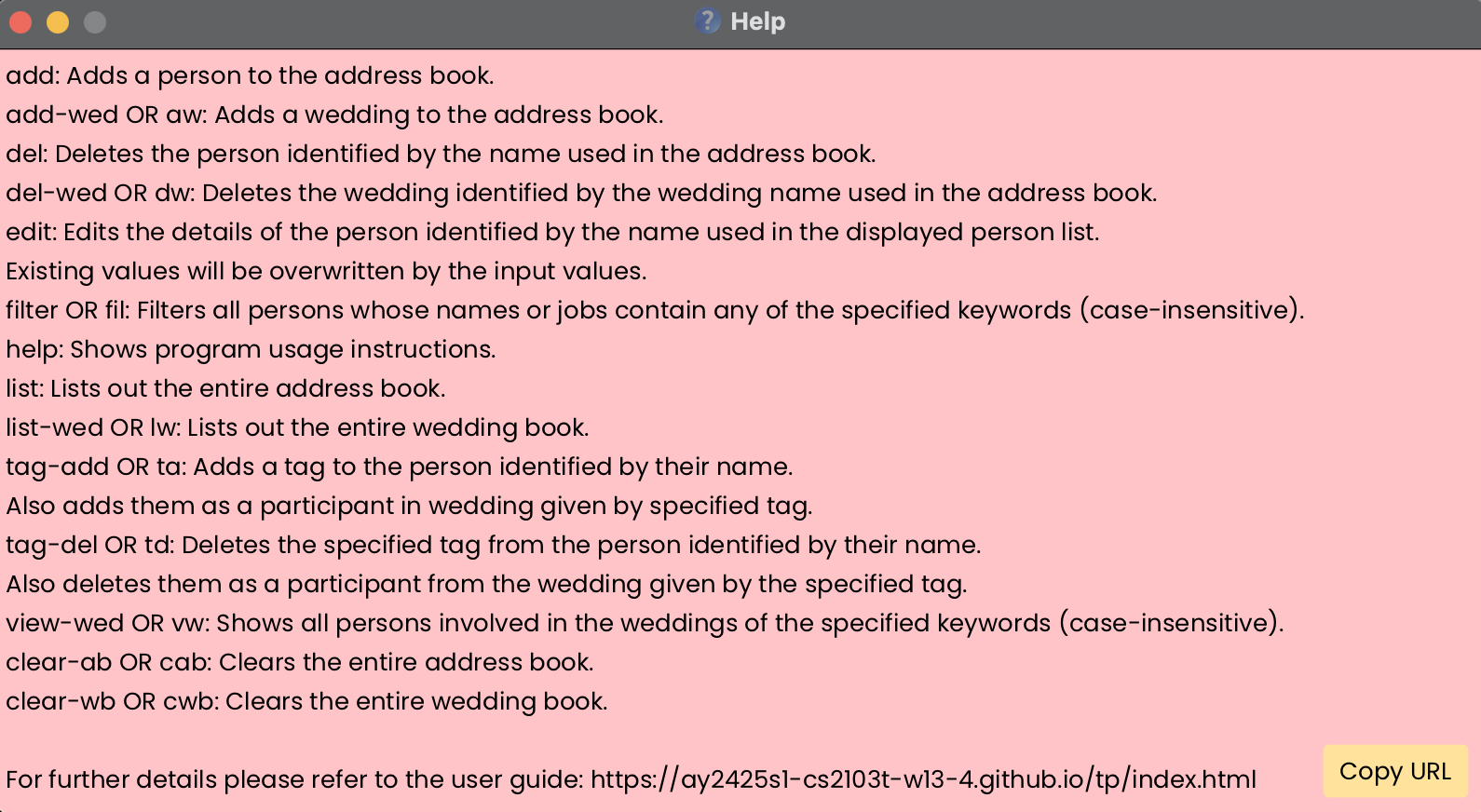
You can view a popup with an overview of all the commands, and a link to this user guide if you need more details.
Format: help
Adding a Contact: add
You can add a person to the list of contacts.
Format: add n/NAME p/PHONE_NUMBER e/EMAIL a/ADDRESS j/JOB [t/TAG]
- A person can have any number of tags (including 0). Tags are associated to the weddings this person is involved in. The wedding must already exist in the wedding book to successfully tag a person to it.
IMPORTANT:
- If you are worried about adding duplicated people, fret not! KnottyPlanners will alert you when an identical person is added.
- If you add tags of a weddings that does not exist, KnottyPlanners will still add the person and ignore invalid tags.
- We will also alert you when you add a different person with the same name and you can add in keywords in these situations to differentiate them 😊 (e.g. if
Johnis duplicated, you can consider changing intoJohn TanorJohn from school).
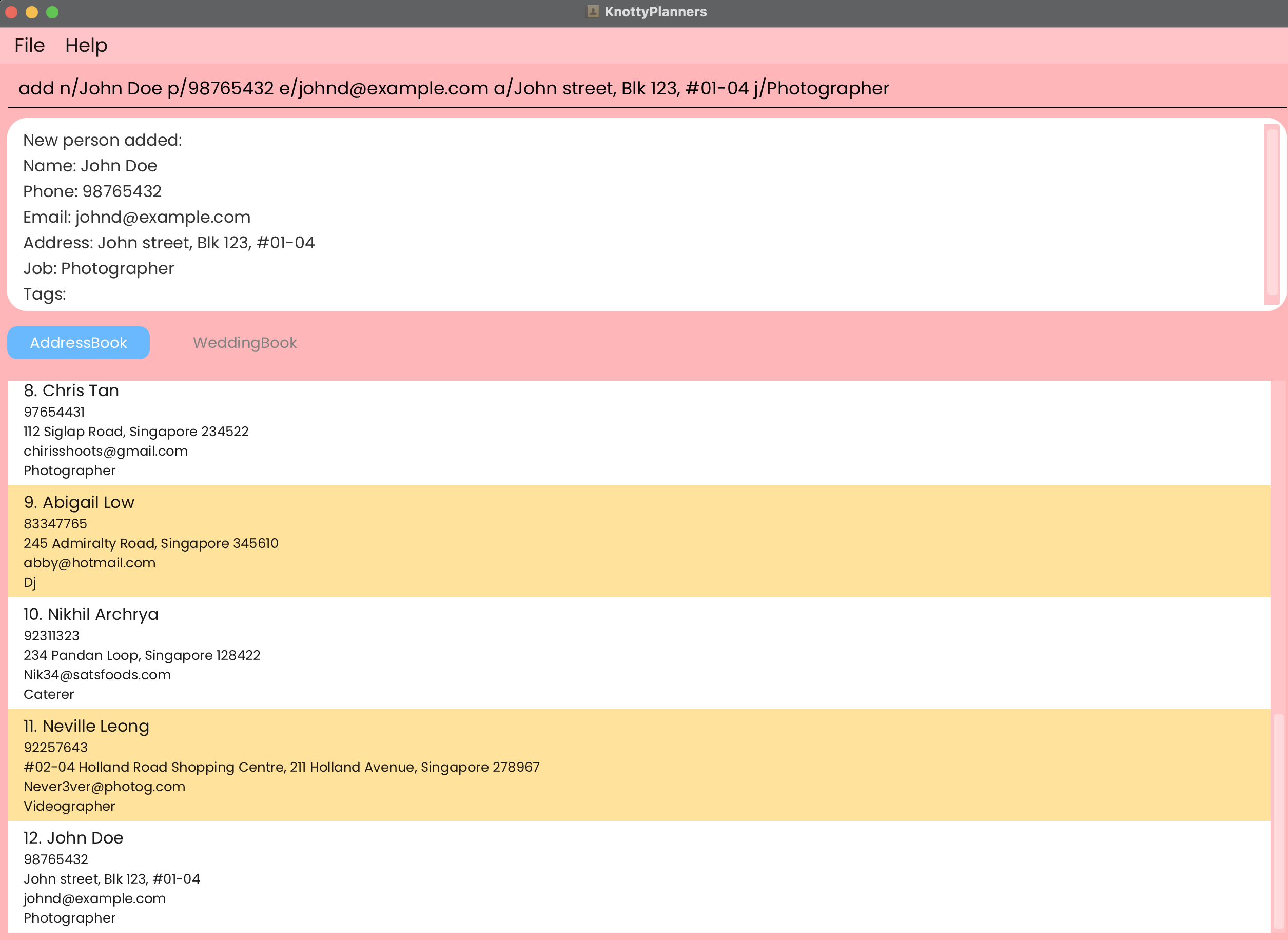
Examples:
add n/John Doe p/98765432 e/johnd@example.com a/John street, Blk 123, #01-04 j/Photographeradd n/Betsy Crowe p/90341259 e/betsycrowe@example.com a/Newgate Center j/Caterer t/Stacy & SamP.S. The weddingStacy & Sammust be created first usingadd-wedcommand!
Deleting a Contact: del followed by y or n
You can delete a person from your list of contacts.
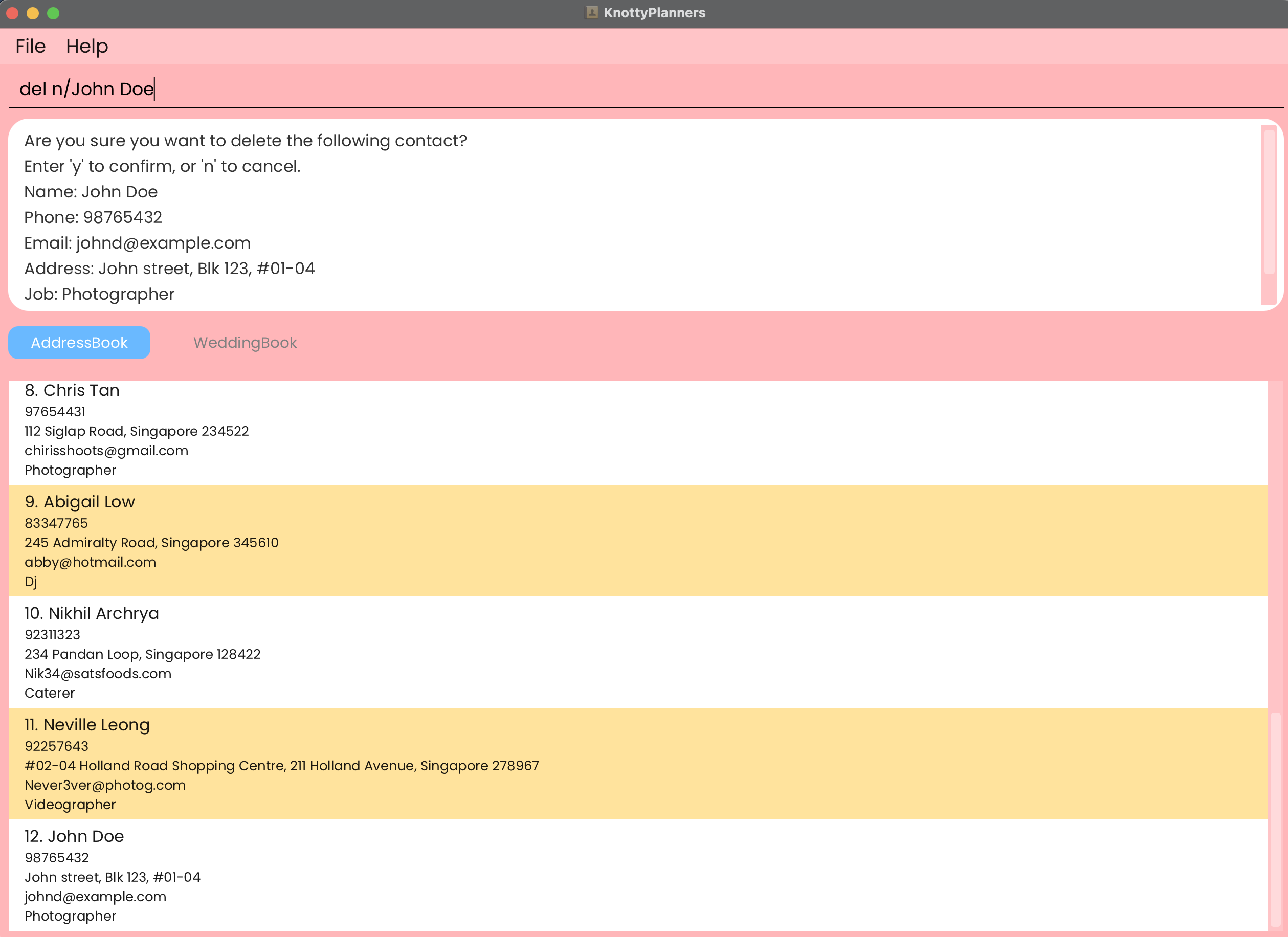
Format: del n/NAME followed by y or n
- Deletes the person with the specified
NAMEfrom the address book. - The contact's details are shown for confirmation.
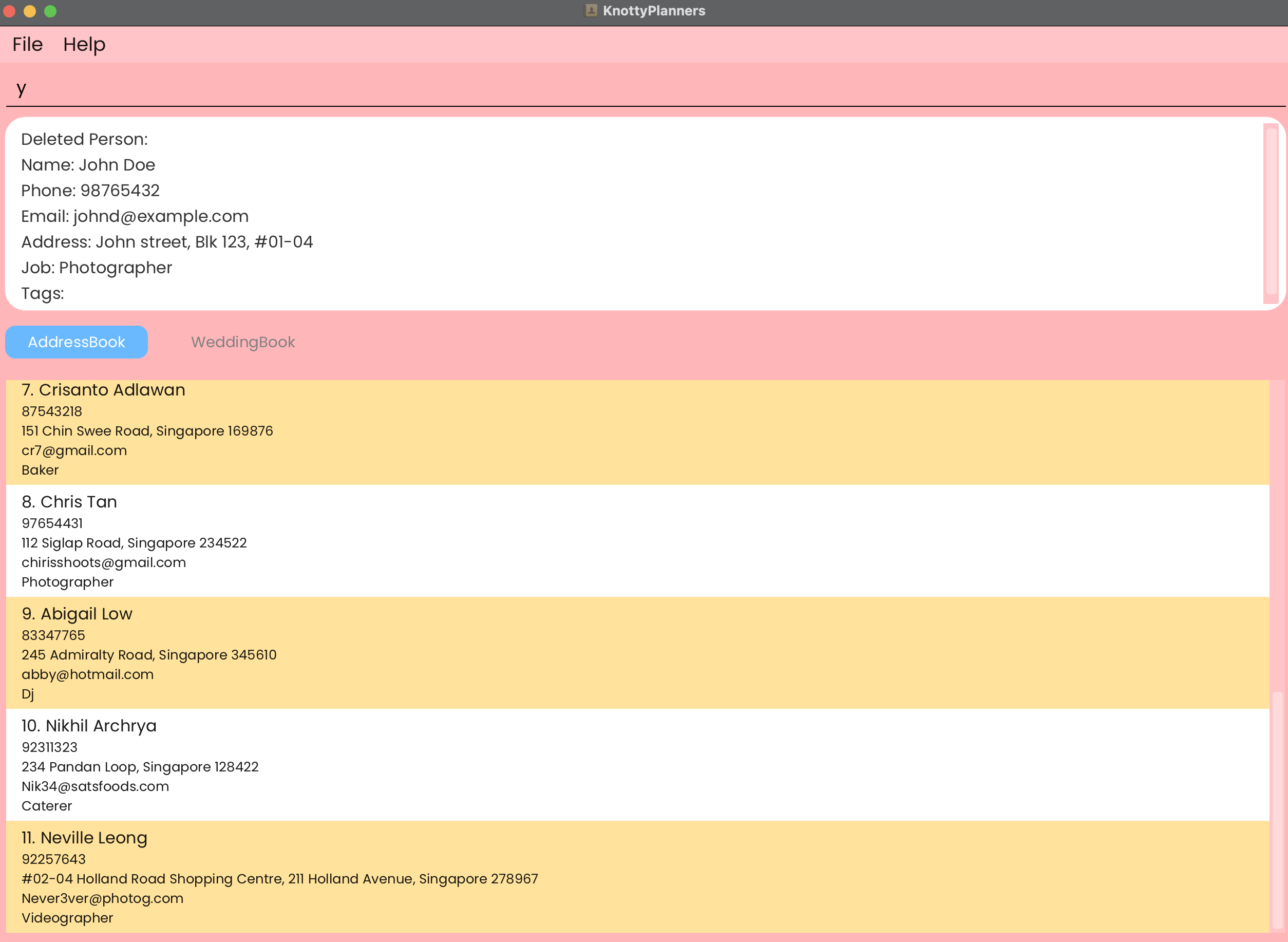
- The contact is deleted if
yis entered. - The contact is not deleted if
nis entered, cancelling the delete operation and nothing will occur.
IMPORTANT:
del n/NAMEMUST BE followed by either of the two commands, otherwise, following delete commands may be affected. Refer to the Command Summary for more information. 😊
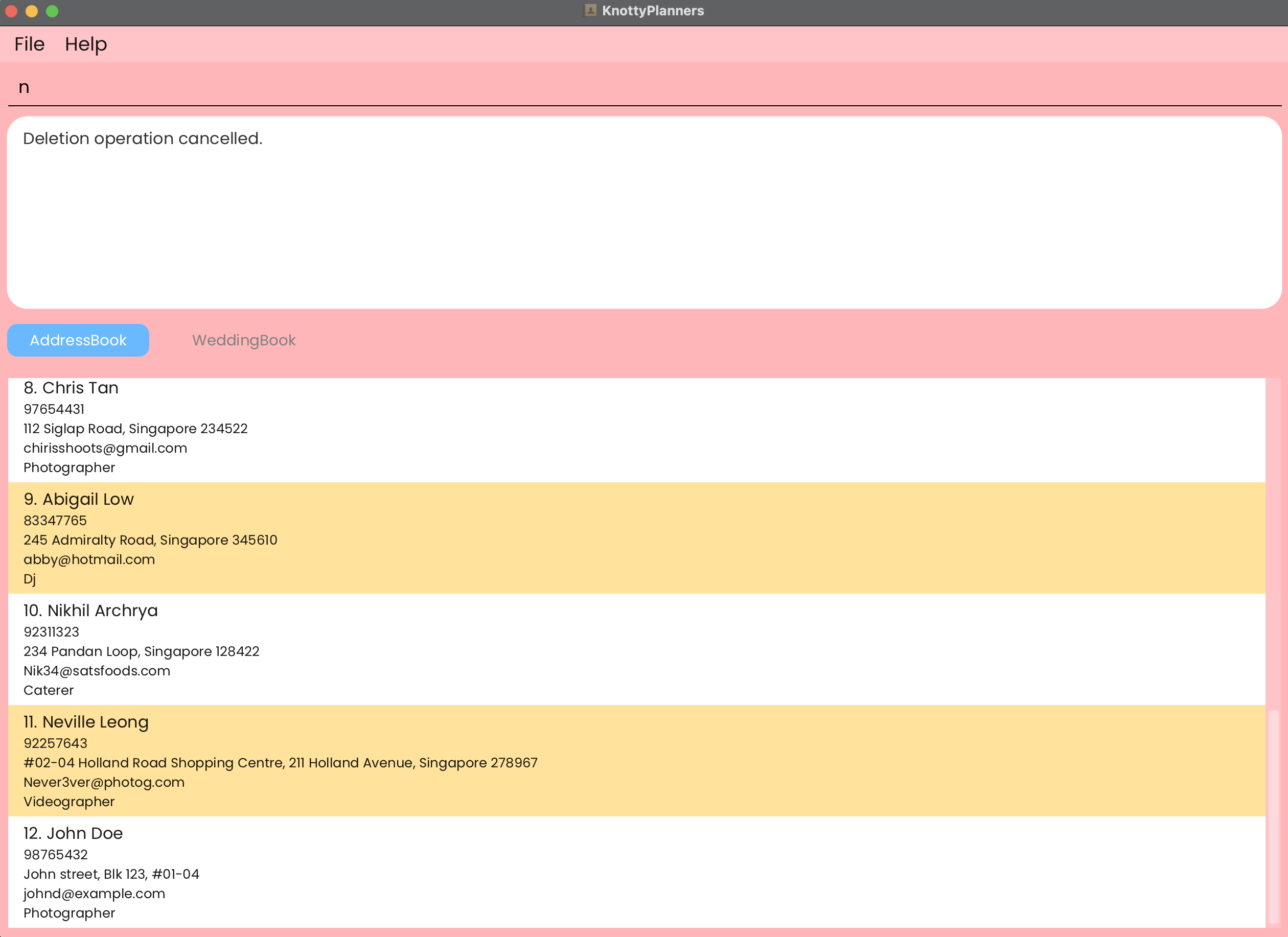
Examples:
del n/John Doefollowed byydeletes the person namedJohn Doefrom the address book.del n/John Doefollowed byncancels the delete operation.
Editing a Contact: edit
You can edit an existing contact's details (name, phone number, email, address and job).
Format: edit n/NAME [new/NEW_NAME] [p/NEW_PHONE] [e/NEW_EMAIL] [a/NEW_ADDRESS] [j/NEW_JOB]
- You have to provide at least one of the optional fields.
- Tags can't be edited, so if you'd like to change a tag, simply delete the existing one using 'tag-del' and add a new one using 'tag-add'!
IMPORTANT:
- Multiple inputs of the same parameter can be added but only the last one will be accepted.
- Examples:
edit n/John p/111 p/222will edit John's phone number to222(the first phone number will be ignored).edit n/John n/Gary a/Tampines Heightswill edit Gary's address toTampines Heights(John's address will remain unedited).
- Order of parameters does not matter and the person to edit will depend on the
n/NAME. - Examples:
edit p/222 n/Johnwill edit John's phone number to222.edit a/Tampines Heights p/123 n/Johnwill edit John's address toTampines Heightsand John's phone number to123respectively.
- Editing a field with the original value will be considered a valid command.
edit n/John new/Johnis a valid command and no changes will be made, same applies to other fields.edit n/John new/johnoredit n/John new/ johnis a valid command and no changes will be made as names are auto-formatted to 'John' in KnottyPlanners.
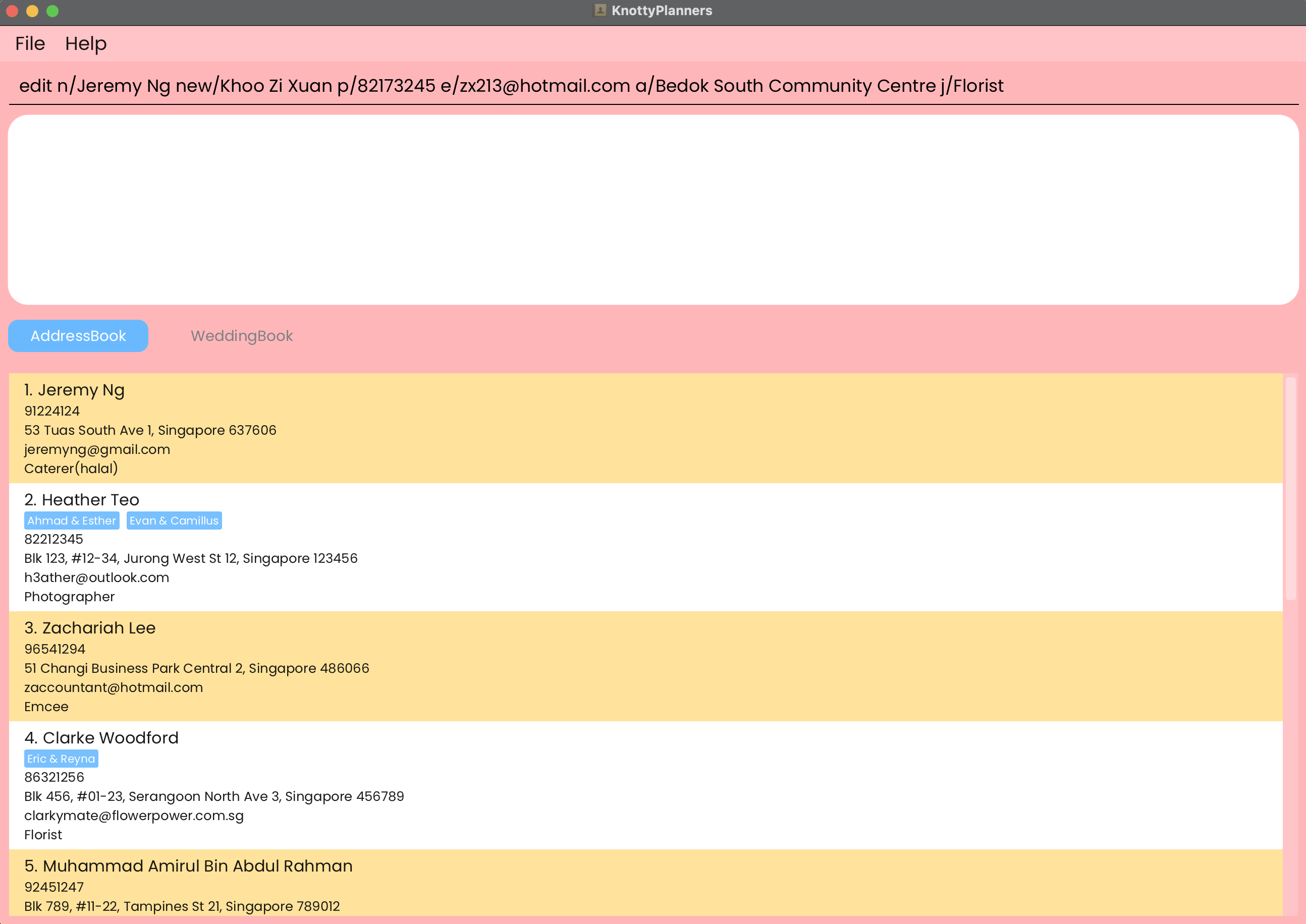
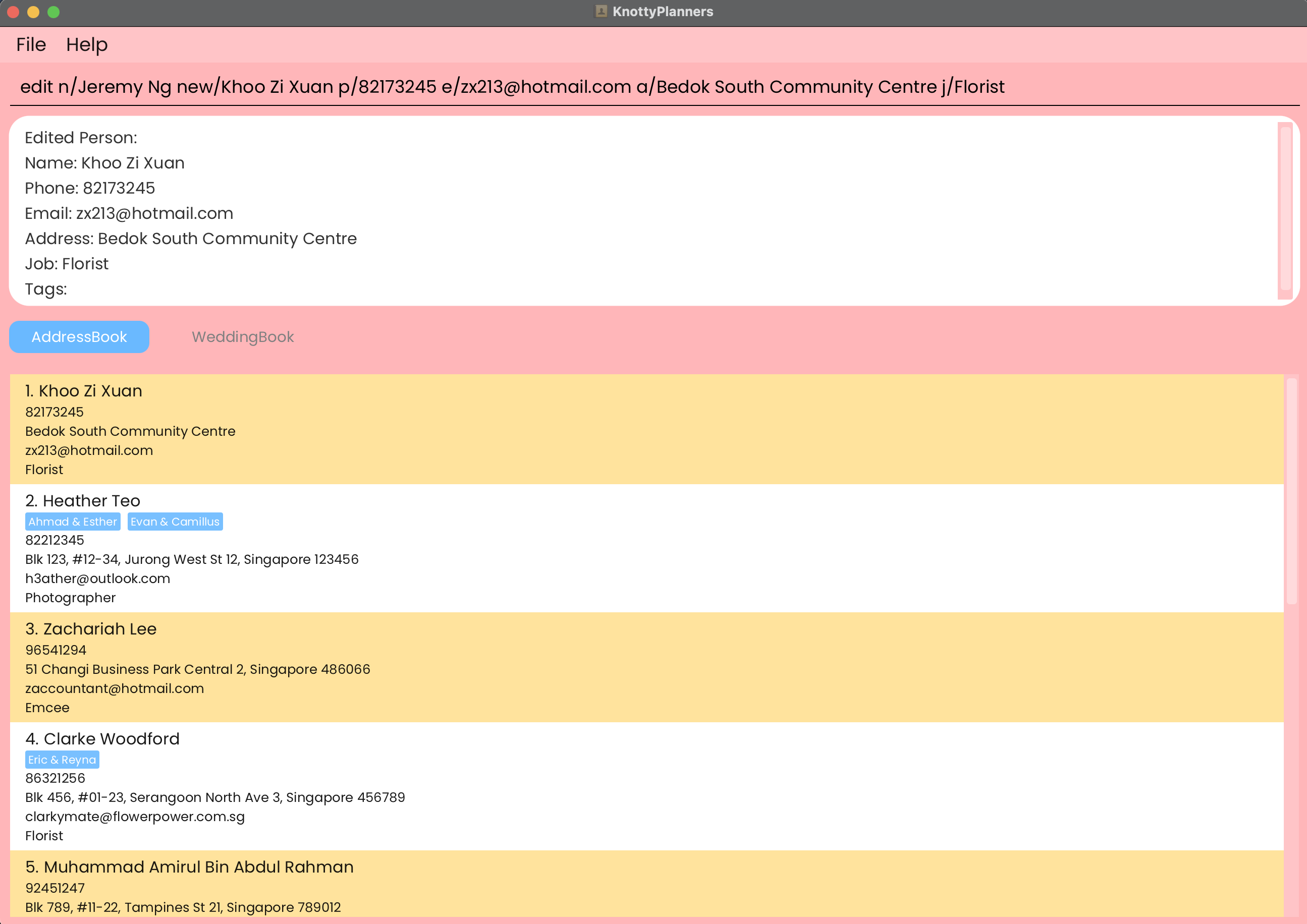
Examples:
edit n/John Doe p/91234567 e/johndoe@example.comEdits the phone number and email address of John Doe to be91234567andjohndoe@example.comrespectively.edit n/James new/Clark e/clarknewemail@example.com j/FloristEdits the name, email and job to beJames,clarknewemail@example.comandFloristrespectively.
Listing All Contacts: list
You can now view all contacts in the order they were added.
Format: list
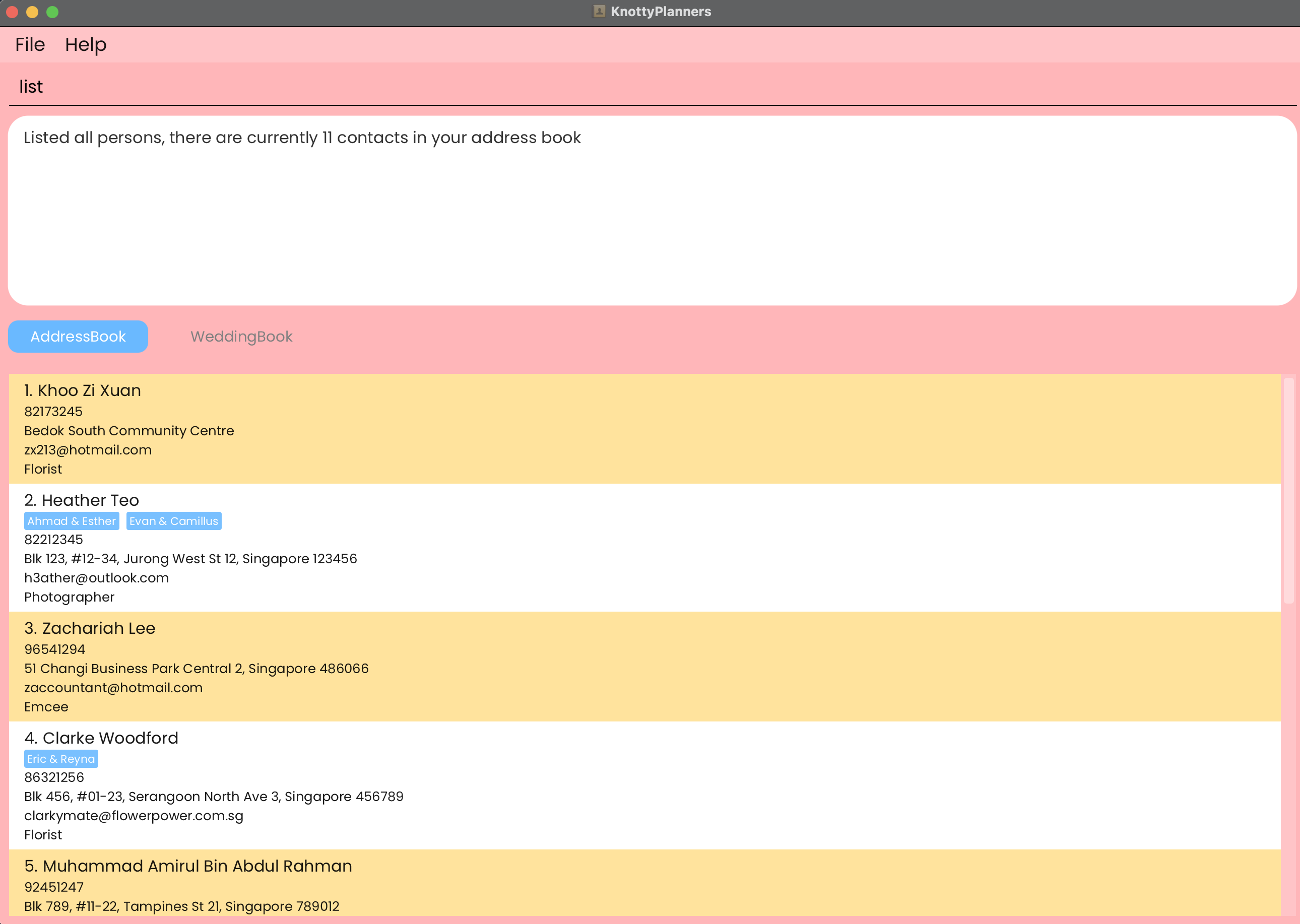
Adding a Wedding: add-wed / aw
You can add a wedding to the list of weddings.
Format: add-wed w/NAME & NAME v/VENUE d/DATE / aw w/NAME & NAME v/VENUE d/DATE
- If you are worried about adding duplicated weddings, fret not! KnottyPlanners will alert you when an identical wedding is added.
- We will also alert you when you add a different wedding with the same name, you can add keywords into the wedding names in these situations to differentiate them 😊(e.g.
John & Jane LocalandJohn & Jane Overseas).
IMPORTANT:
- Please take note that the order of the names matters.
John & Janeis NOT the same asJane & Johnand will not be treated as a duplicate.
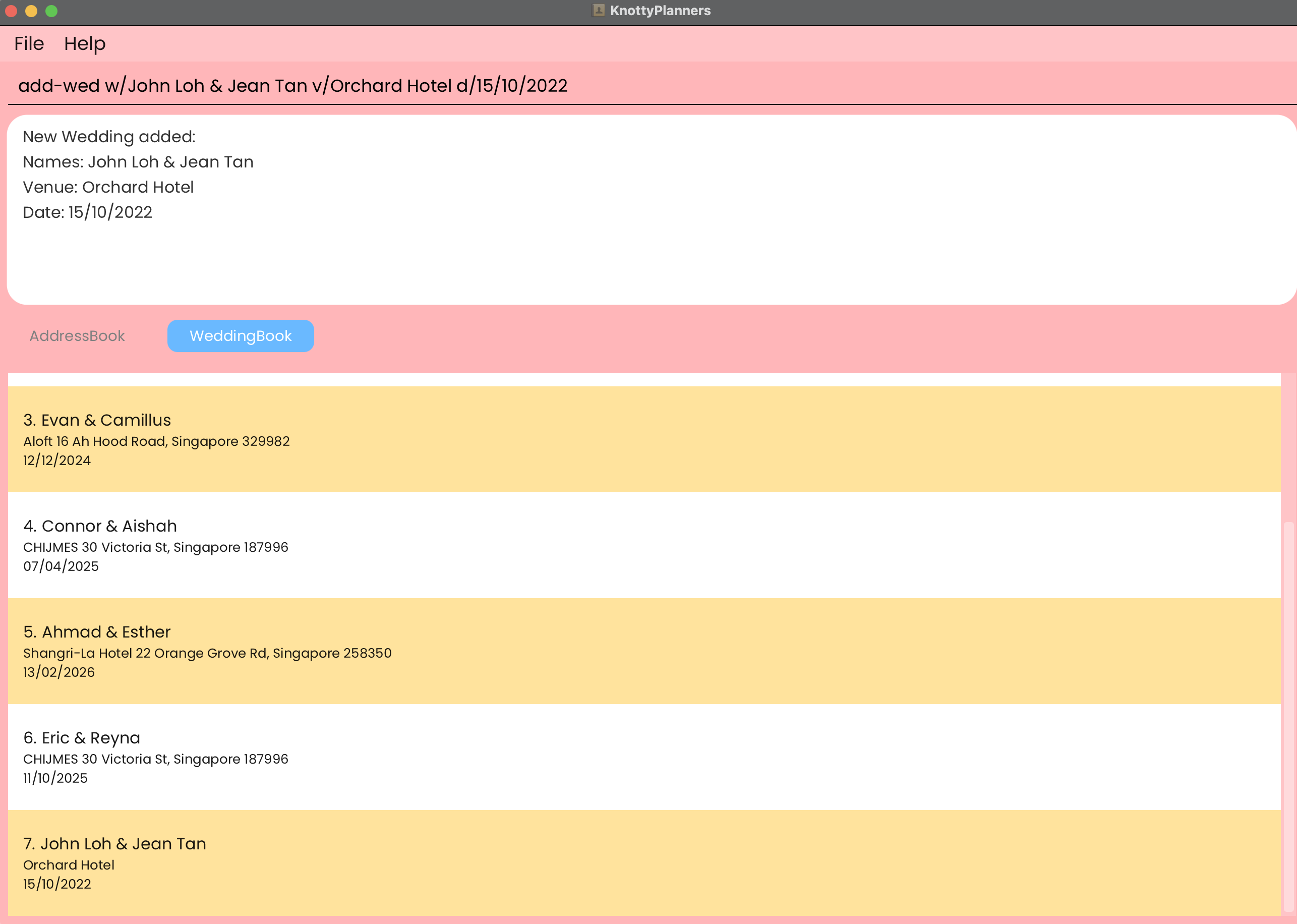
Examples:
add-wed w/John Loh & Jean Tan v/Orchard Hotel d/15/10/2022aw w/Jonus Ho & Izzat Syazani v/Pasir Ris Hotel d/02/11/2022
Deleting a Wedding: del-wed / dw
You can delete a wedding from your list of weddings.
Format: del-wed w/NAME & NAME / dw w/NAME & NAME followed by y or n
- Deletes the wedding with the specified
NAME & NAMEfrom the address book. - The wedding's details are shown for confirmation.
- The wedding is deleted if
yis entered. - The wedding is not deleted if
nis entered, cancelling the delete operation and nothing will occur.
IMPORTANT:
dw w/NAME & NAMEMUST BE followed by either of the two commands, otherwise, following delete commands may be affected. Refer to the Command Summary for more information. 😊- The wedding must be entered exactly as it was saved in the wedding book to successfully delete it.
- As we do not have an edit wedding command, please use 'del-wed' and 'add-wed' to change the details of a wedding.
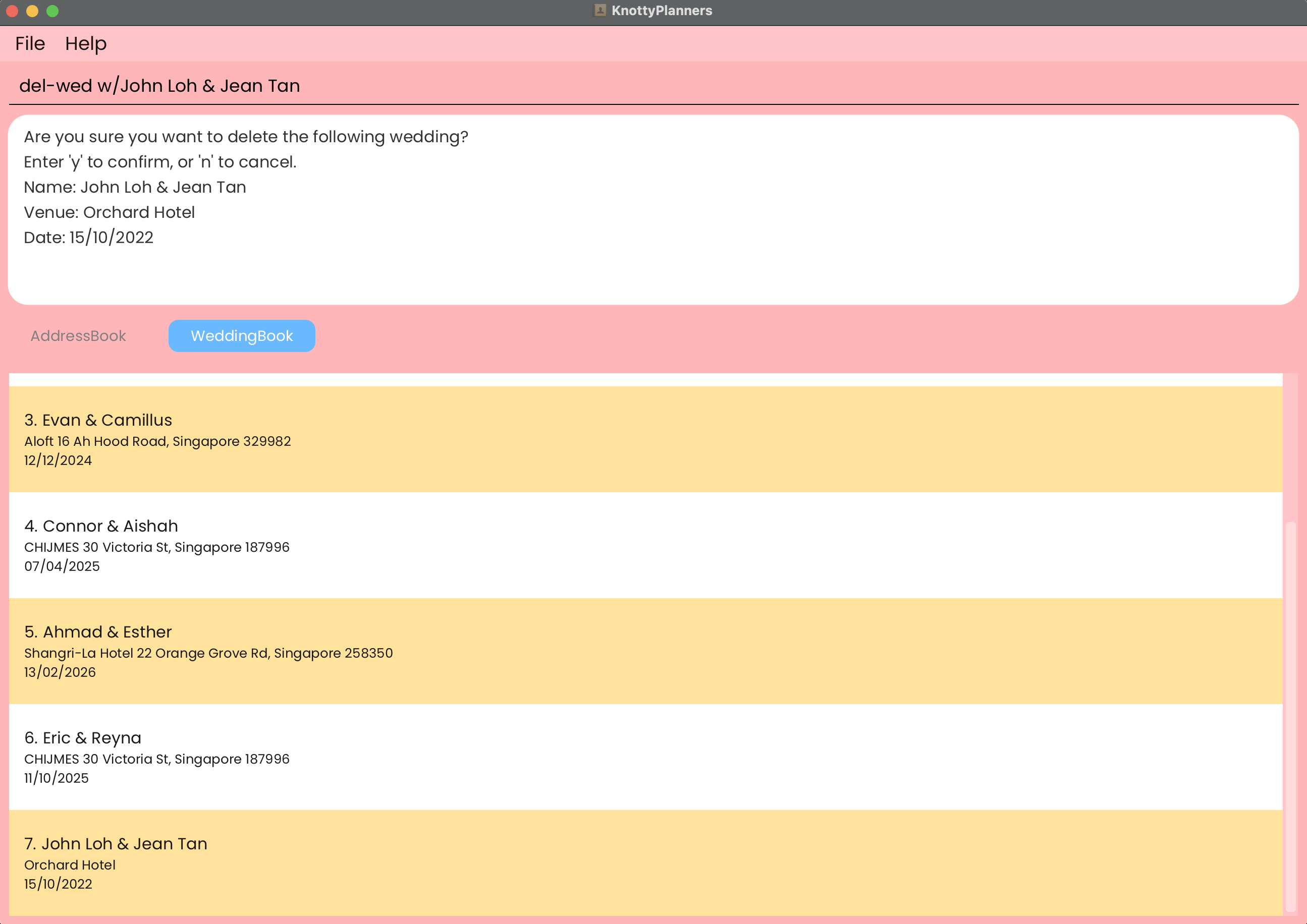
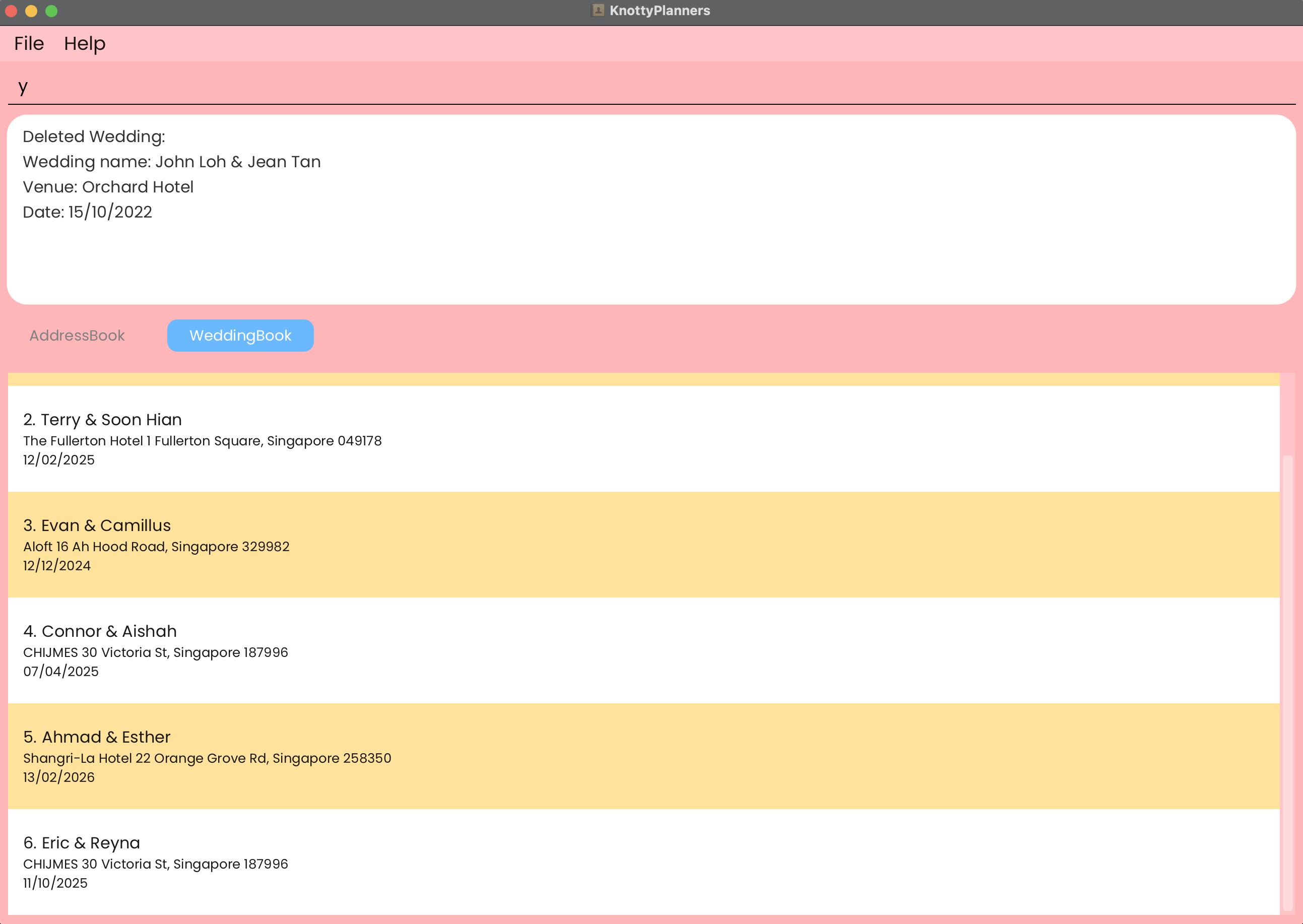
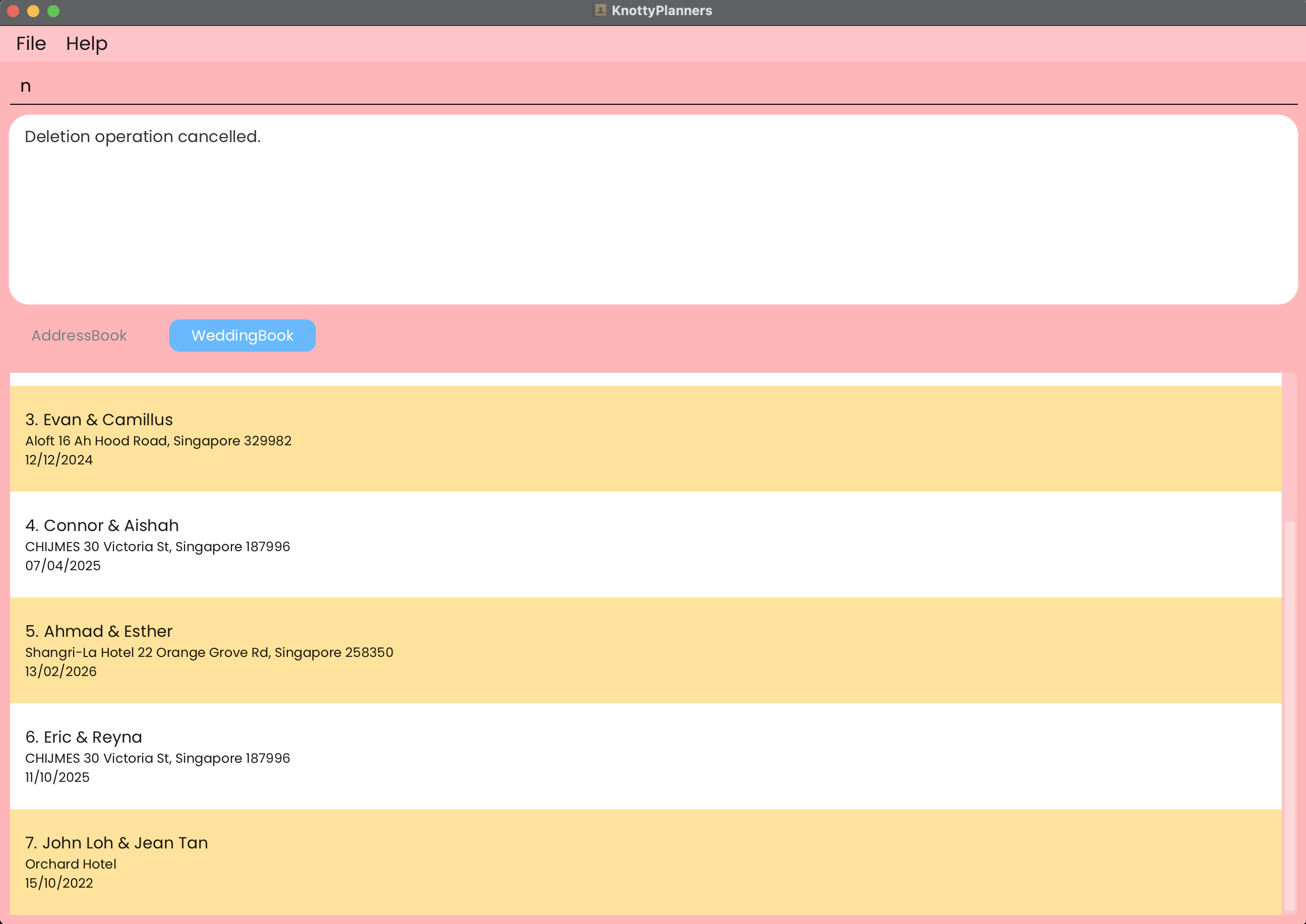
Examples:
del-wed w/John Loh & Jean Tanfollowed byydeletes the wedding namedJohn Loh & Jean Tanfrom the address book.dw w/Jonus Ho & Izzat Syazanifollowed byncancels the delete operation.
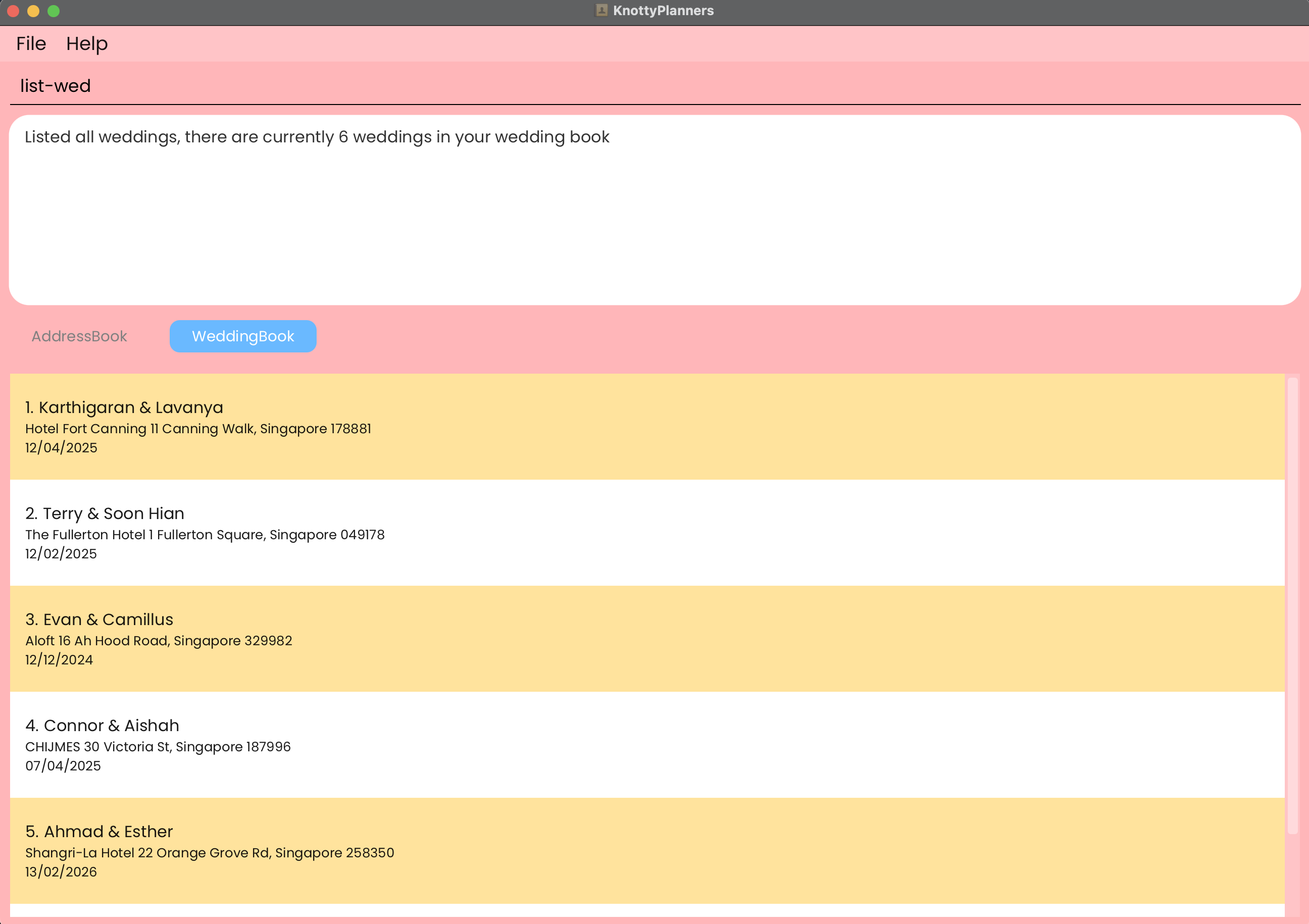
Listing All Weddings: list-wed / lw
You can now view all weddings in the order they were added.
Format: list-wed / lw
Tagging a Contact
Adding Tag(s) to a Contact: tag-add / ta
You can add your contacts to a particular wedding.
Format: tag-add n/NAME t/TAG [t/TAG]... / ta n/NAME t/TAG [t/TAG]...
- At least one
TAGfield must be present. - The name of the tag must match the wedding that you want to add the contact to.
- You can add one contact to multiple weddings in one go by specifying multiple tags in your command.
IMPORTANT:
- The wedding must already exist in the wedding book to successfully tag a person to a wedding.
- If multiple tags of the same wedding are added, KnottyPlanners will only process one and ignore the other tags for you.
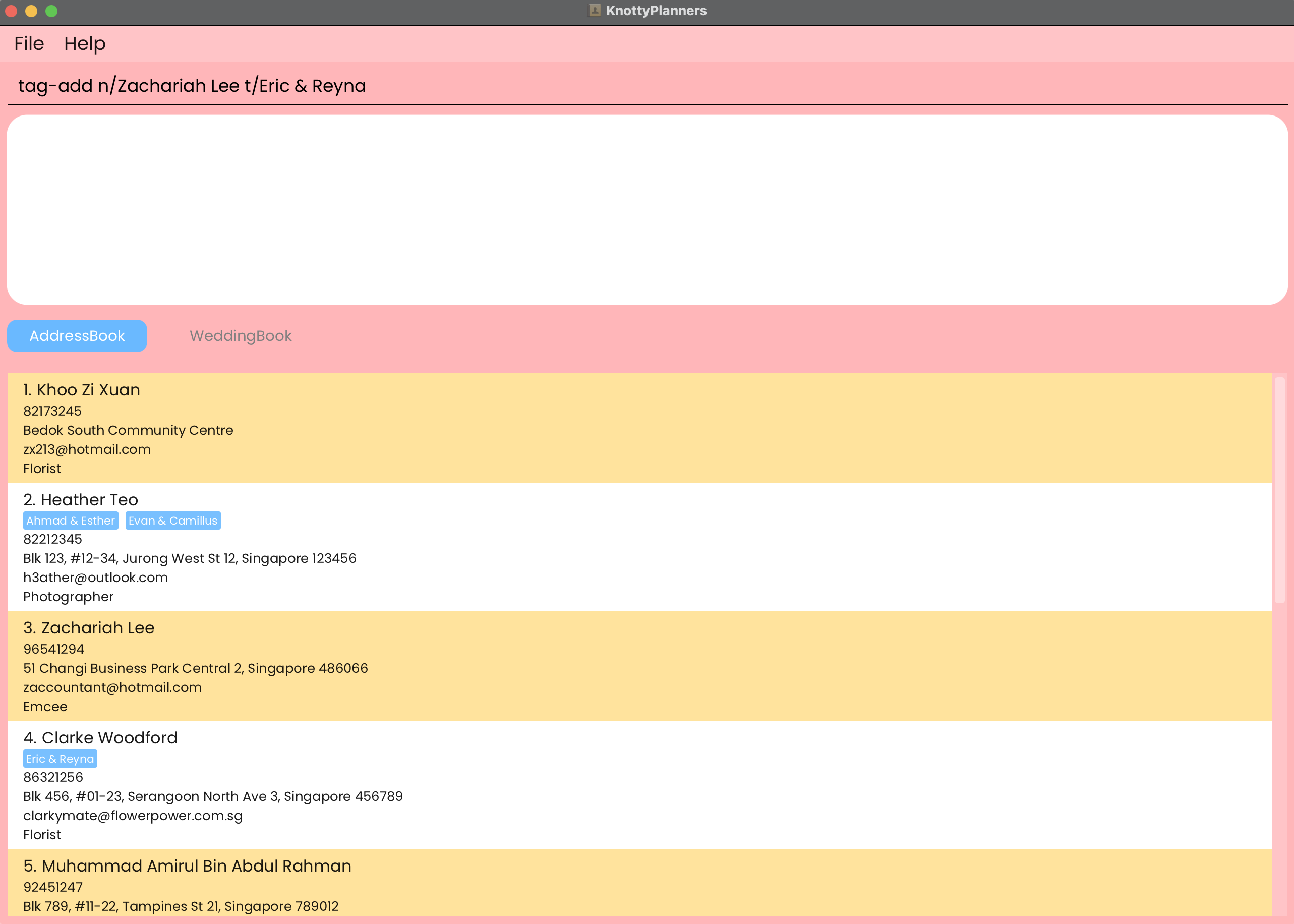
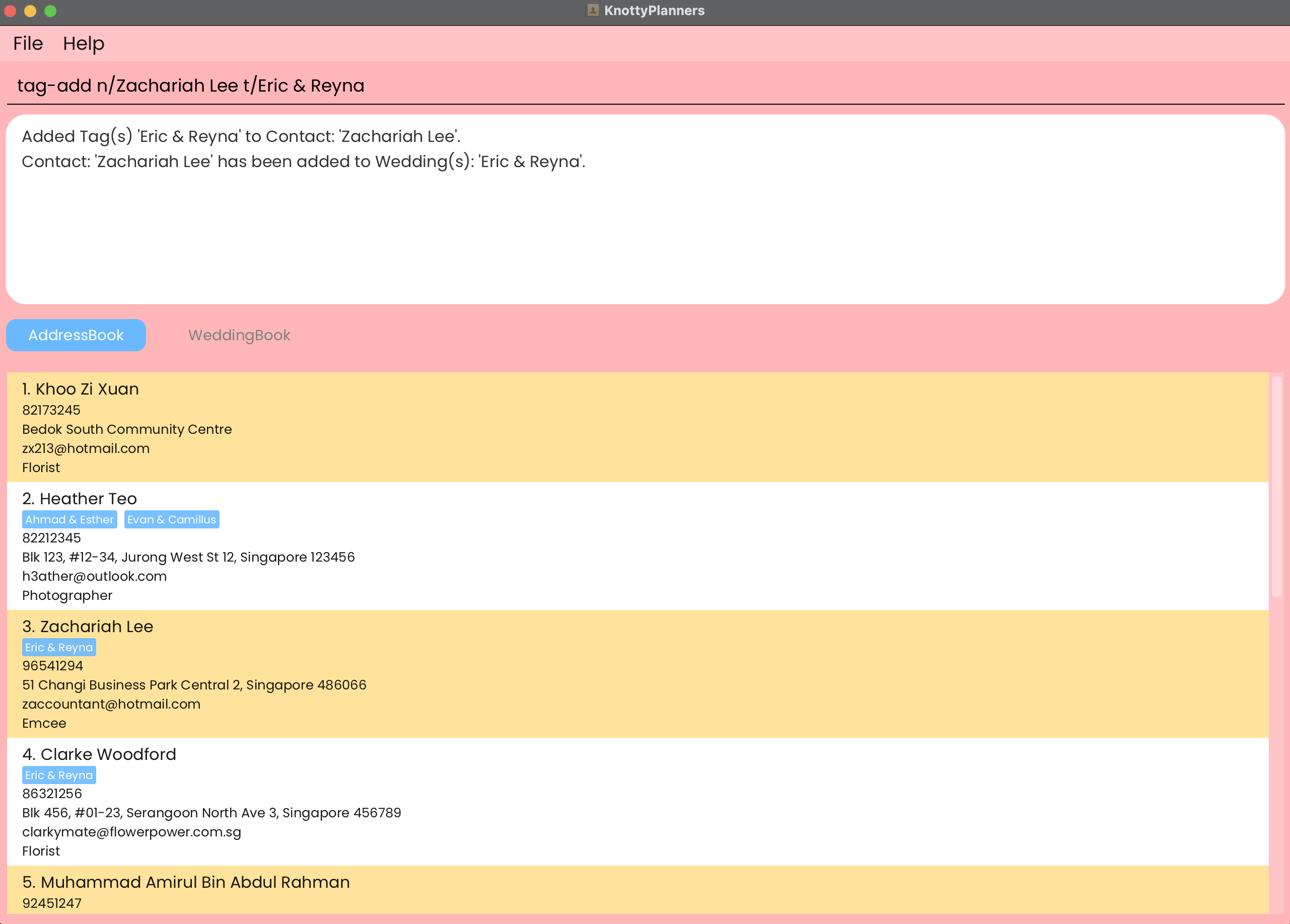
Examples:
tag-add n/John Doe t/Adam and Steveadds the tagAdam and Steveto John Doe.ta n/Betsy Crower t/Lacy & Bacy t/Peter & Mary t/Jonny & Bonnyadds the tagsLacy & Bacy,Peter & Mary, andJonny & Bonnyto Betsy Crower.
Deleting Tag(s) from a Contact: tag-del / td
You can remove your contacts from a particular wedding.
Format: tag-del n/NAME t/TAG [t/TAG]... / td n/NAME t/TAG [t/TAG]...
- At least one
TAGfield must be present. - The name of the tag must match the wedding that you want to delete the contact from.
- You can remove a contact from multiple weddings in one go by specifying multiple tags in your command.
IMPORTANT:
- The wedding must already exist in the wedding book to successfully delete a person from a wedding.
- If multiple tags of the same wedding are deleted, KnottyPlanners will only process one and ignore the other tags for you.
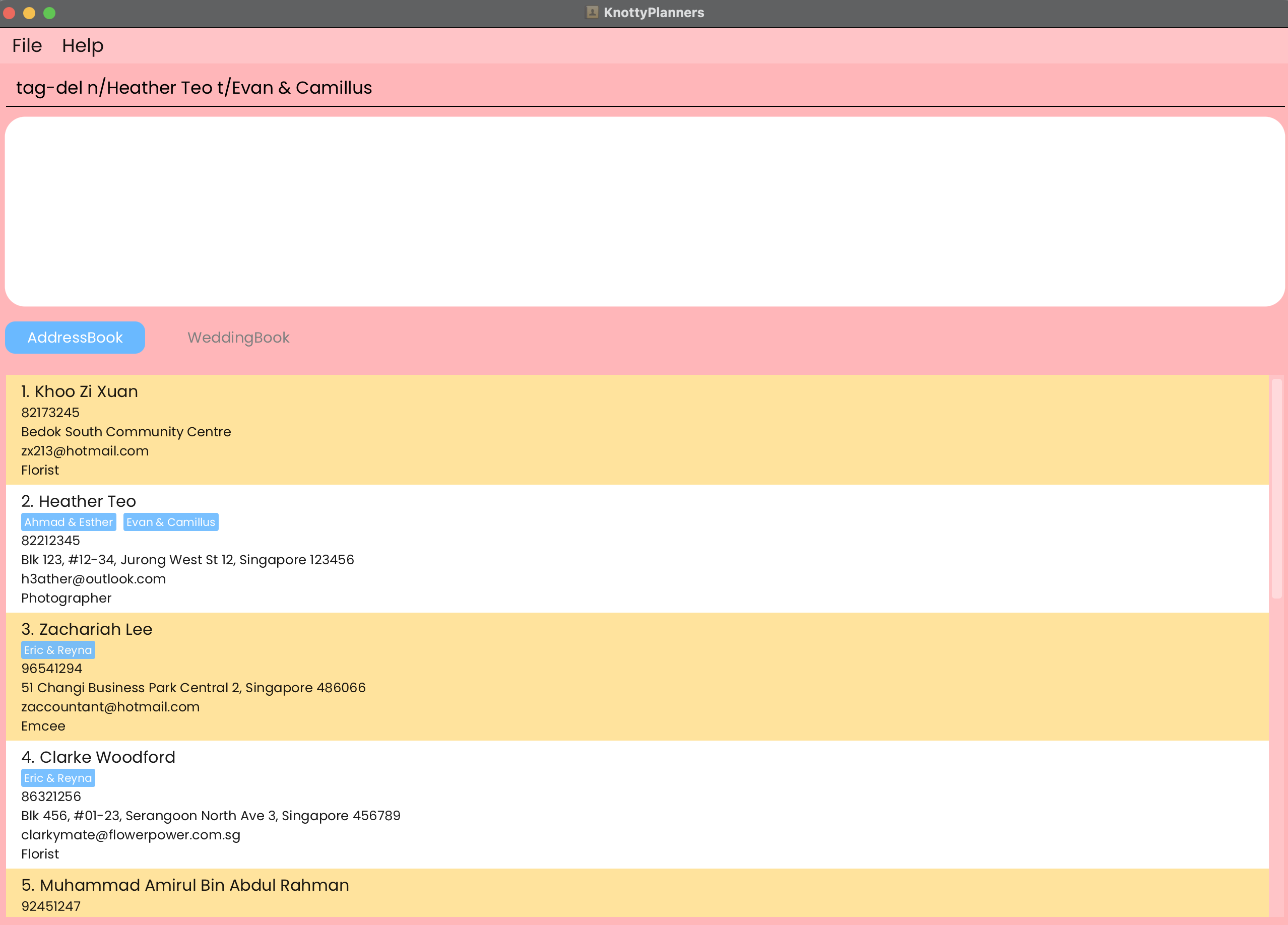
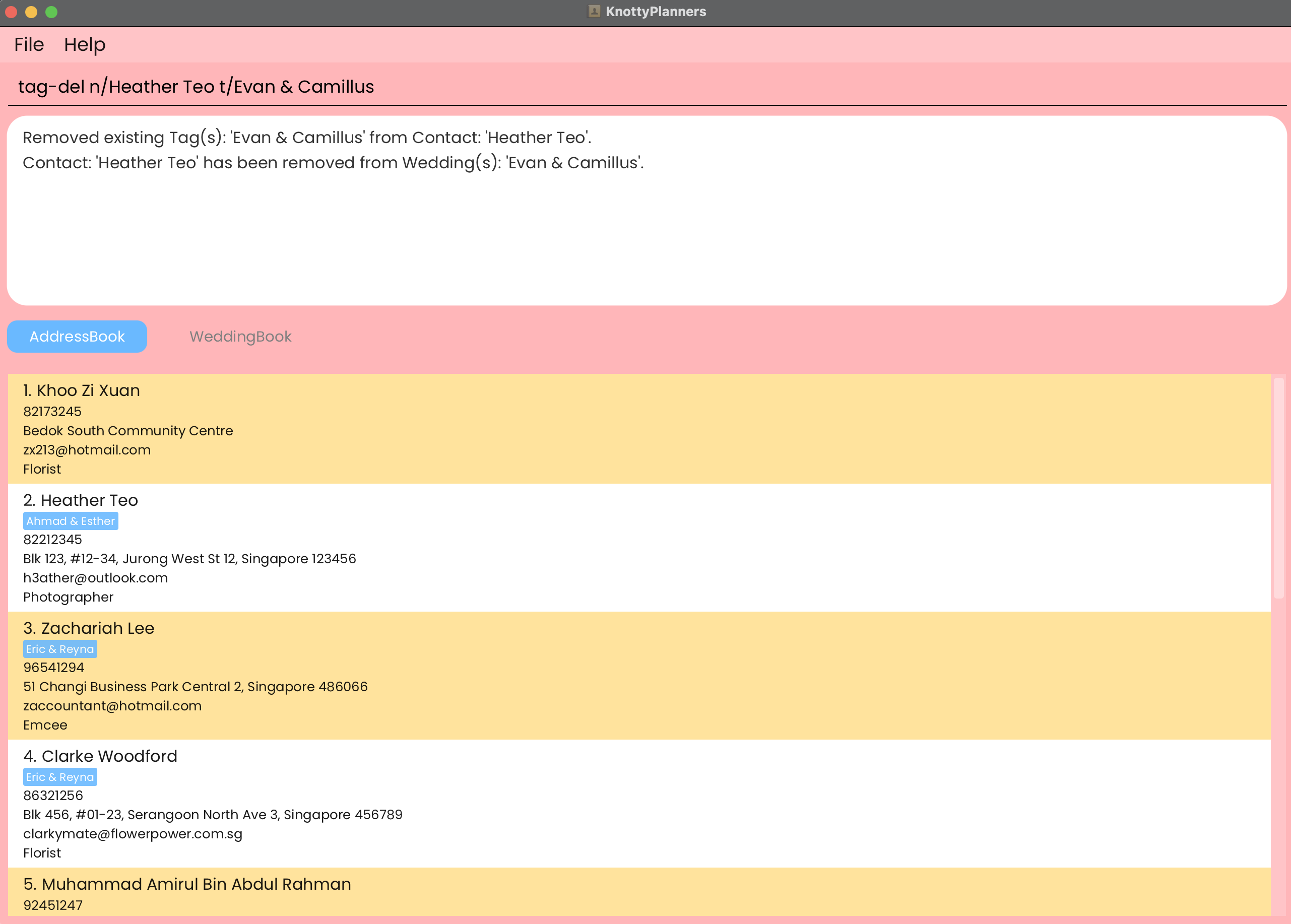
Examples:
tag-del n/John Doe t/Adam and Steveremoves the tagAdam and Stevefrom John Doe.td n/Betsy Crower t/Lacy & Bacy t/Peter & Mary t/Jonny & Bonnyremoves the tagsLacy & Bacy,Peter & Mary, andJonny & Bonnyfrom Betsy Crower.
Filtering Contacts by Name and Job: filter / fil
You can conveniently search for contacts in your address book by name and/or job.
Format: filter [n/KEYWORD]... [j/KEYWORD]... / fil [n/KEYWORD]... [j/KEYWORD]...
- At least one of the
NAMEorJOBfields must be present. KEYWORDis not case-sensitive. e.g.photographerwill matchPhotographer.- Only full words will be matched e.g.
jakwill not matchJake,samwill not matchSam Tan,Photographerwill not matchWedding Photographer. filterreturns the largest range of matches based on your input.
Tip:
- You can filter by multiple name and/or job fields at once!
- Keep in mind that partial matches within the name (e.g. middle or last names alone) won’t return results. To ensure a match, start from the beginning of the full name or first name.
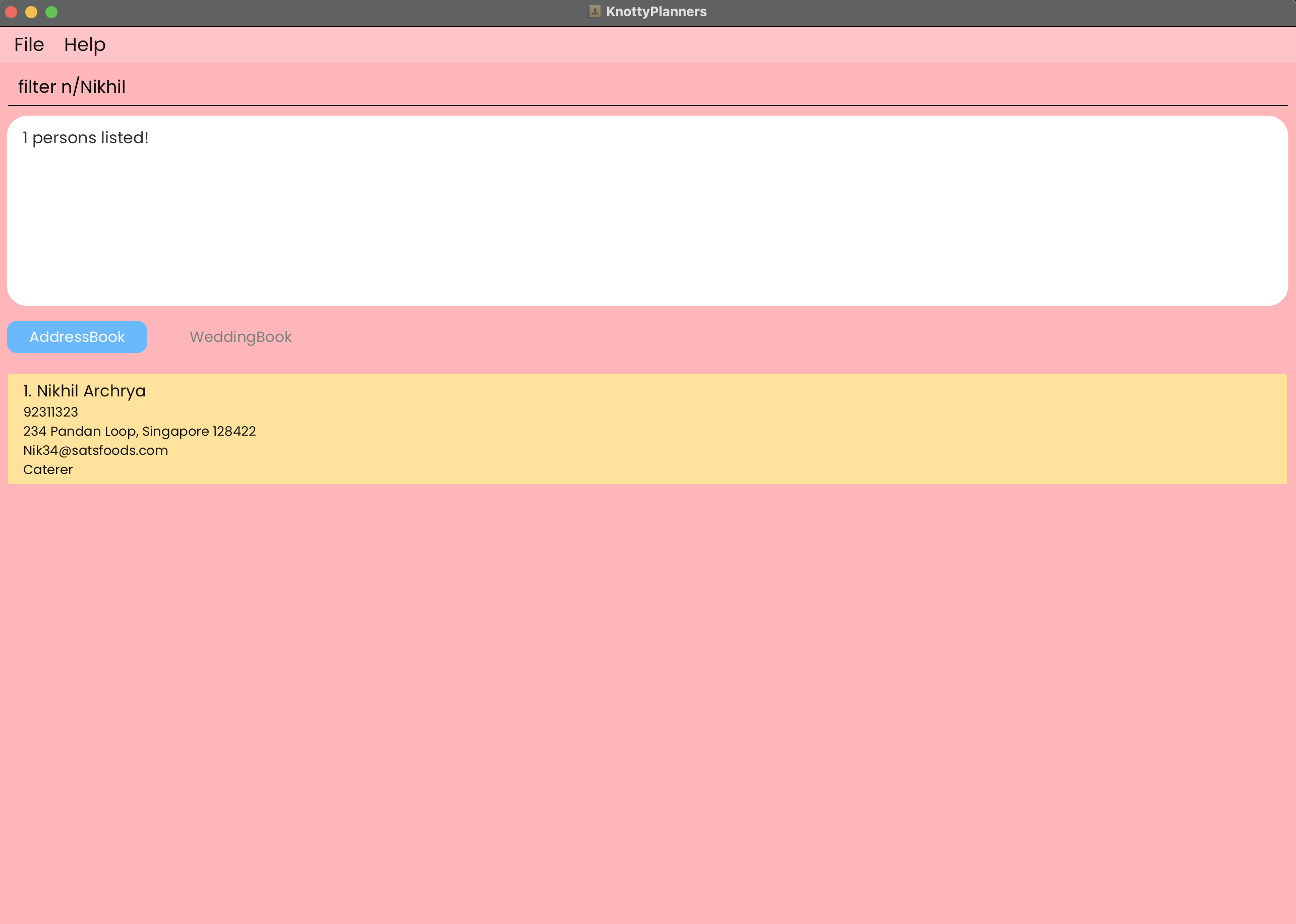
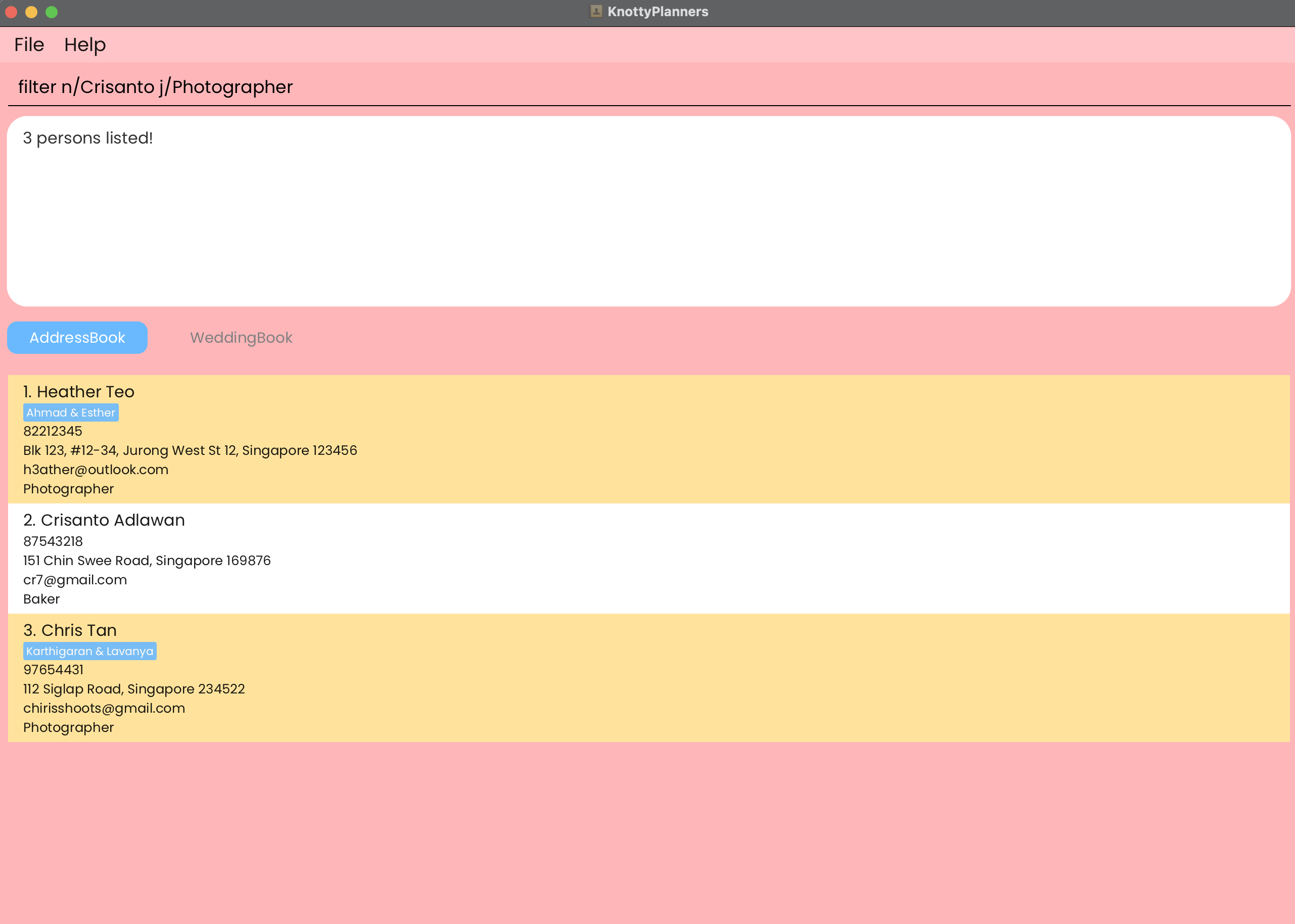
Examples:
filter j/PhotographerreturnsJohnandErnestwhose jobs are photographers.filter n/Johnreturns a person whose name is John.fil n/jonus n/harry j/photographerreturnsJonus,Harryand all photographers that are in your contacts.fil j/host j/catererreturns all hosts and caterers that are in your contacts.
View Wedding: view-wed / vw
You can view a list of all contacts tagged to the specified wedding.
Format: view-wed NAME & NAME / vw NAME & NAME
view-wed/vwshows participants based on wedding names that match the keyword.NAME & NAMEhas to be in the correct order as saved in your wedding book e.g.alice & bobwill not matchBob & Alice.- Only full words will be matched e.g.
jakwill not matchJake,Samwill not matchSam Tan,ian & skywill not matchIan Pang & Sky Tan. - Persons matching at least one keyword will not be returned (i.e.
ANDsearch) e.g.Alicewill not returnAlice & Bob.
TAKE NOTE:
- No prefixes are required for this command.
- If you are in the WeddingBook tab and the wedding you request to view has no participants, KnottyPlanners will display all weddings to allow you to conveniently view other weddings if needed.
- If you are in the AddressBook tab and the wedding you request to view has no participants, KnottyPlanners will not display any participants.
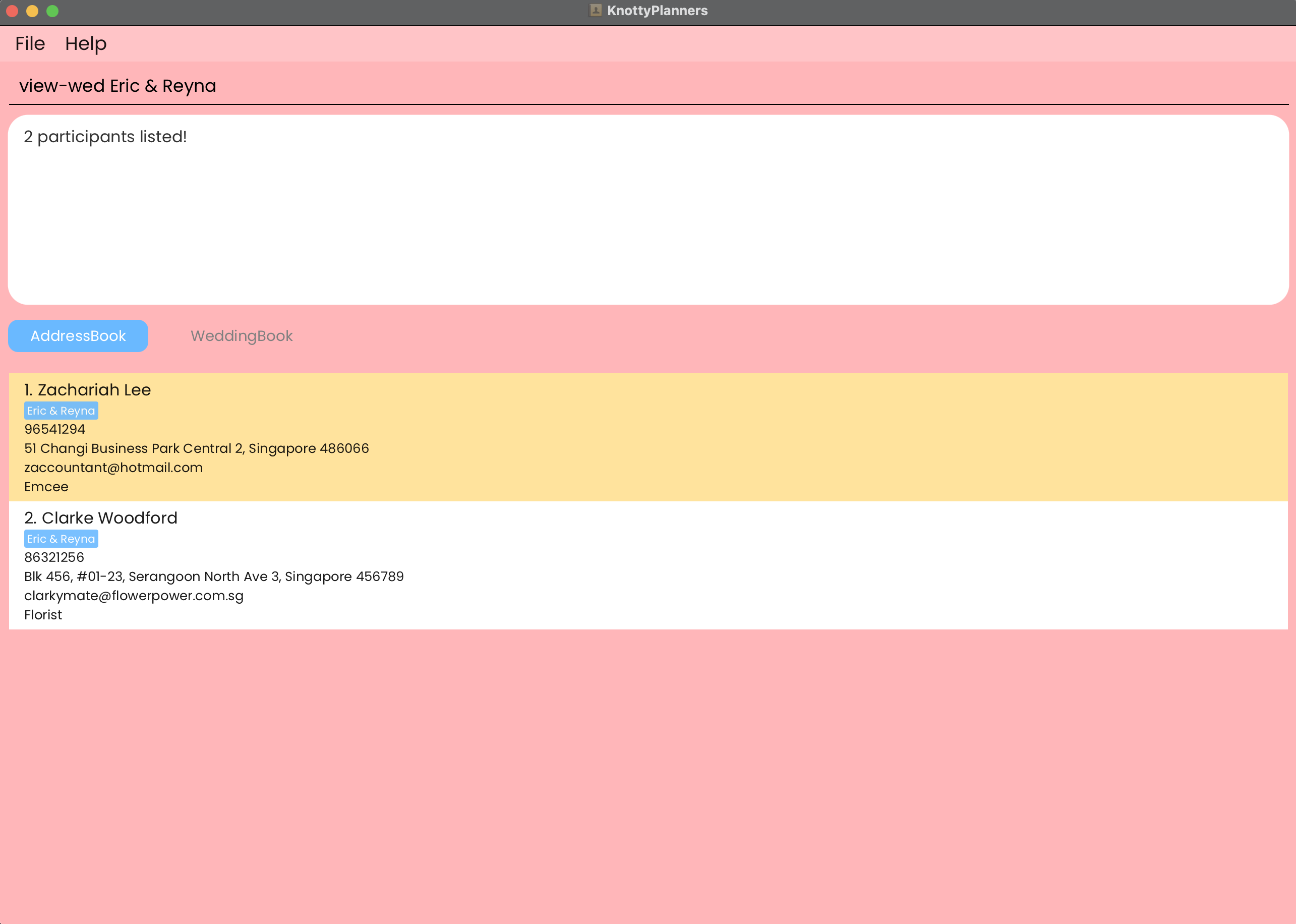
Examples:
view-wed Jane Lim & Tom KohreturnsJohn Doewho is a caterer for that wedding.vw Ahmad & EstherreturnsHalimwho is the best man for Ahmad andJia Zhunwho is a photographer for that wedding as well.
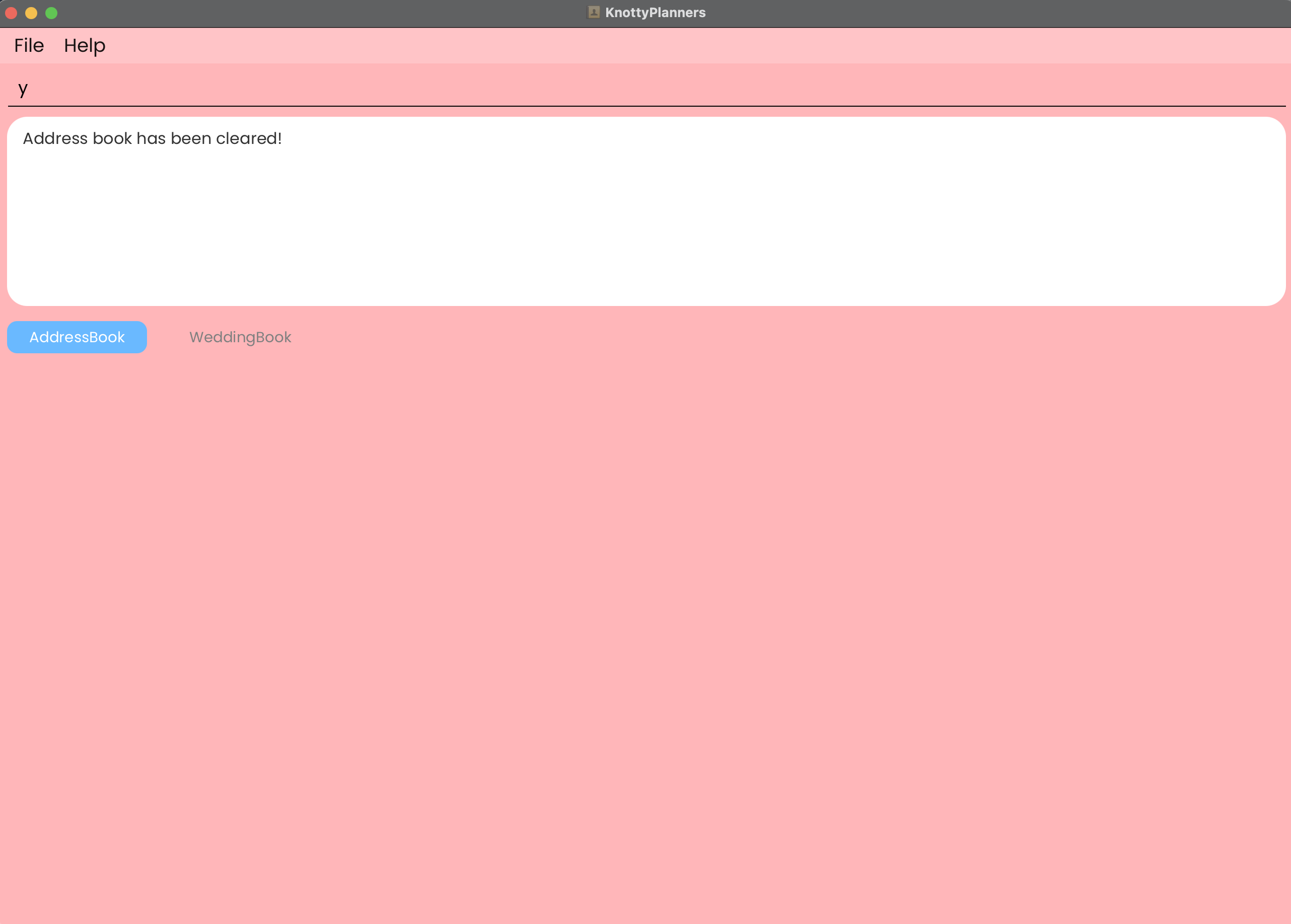
Clearing All Entries in Address Book: clear-ab / cab
You can delete ALL contacts in the address book from the application.
Format:
clear-ab/cabfollowed byyclears all contacts in the address book.clear-ab/cabfollowed bynwill not clear all contacts in the address book.
clear-ab/cabclears all contacts in the address book.- The command will prompt for confirmation before deleting all entries.
- If you confirm with
y, all entries will be deleted. - If you cancel with
n, no entries will be deleted.
IMPORTANT:
- The clear command must be followed by either
yorncommand. Refer to the Command Summary for more information️. 😊
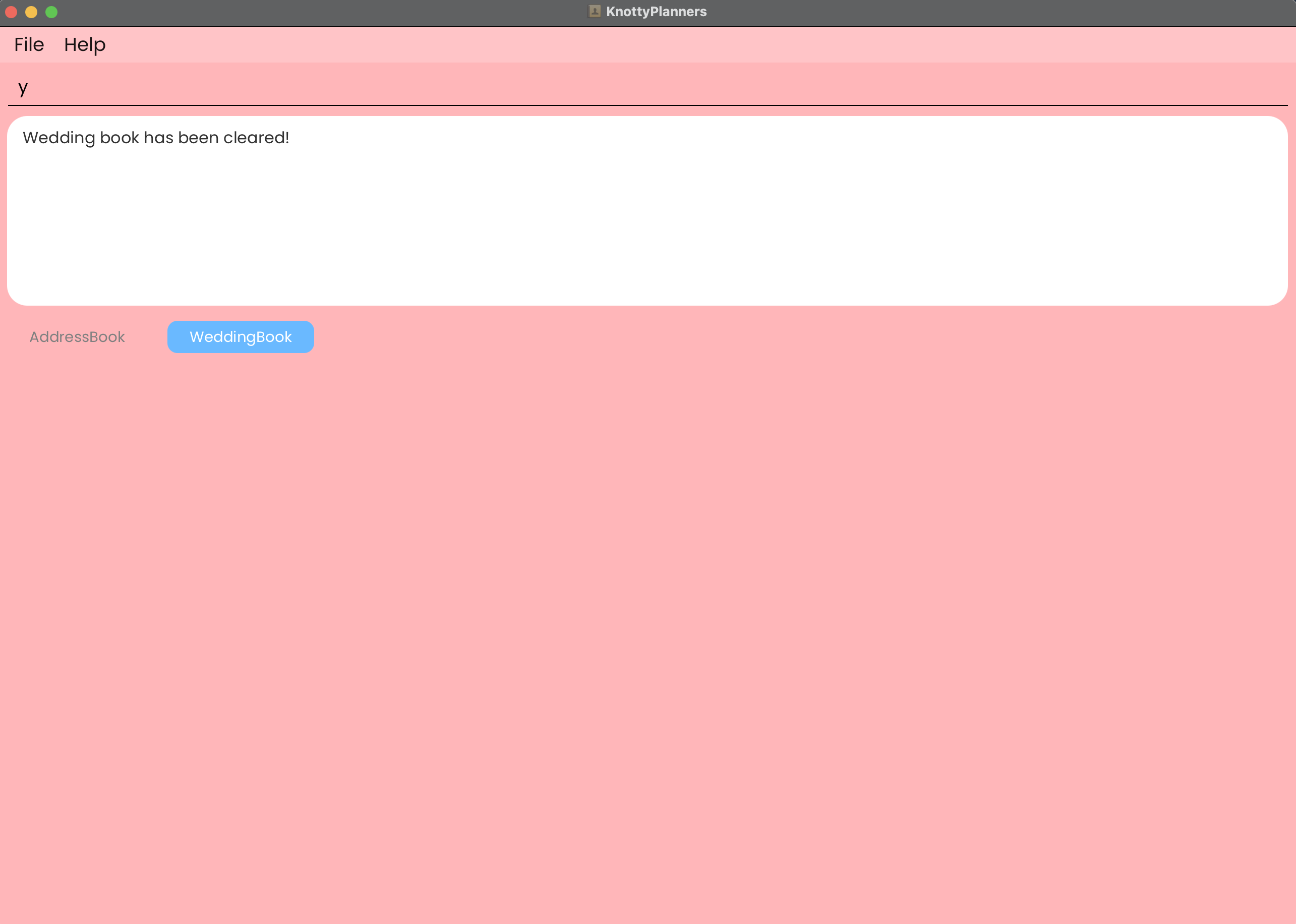
Clearing All Entries in Wedding Book: clear-wb / cwb
You can delete ALL weddings in the wedding book from the application.
Format:
clear-wb/cwbfollowed byyclears all weddings in the wedding book.clear-wb/cwbfollowed bynwill not clear all weddings in the wedding book.
clear-wb/cwbclears all weddings in the wedding book.- The command will prompt for confirmation before deleting all entries.
- If you confirm with
y, all entries will be deleted. - If you cancel with
n, no entries will be deleted.
IMPORTANT:
- The clear command must be followed by either
yorncommand. Refer to the Command Summary for more information. 😊
Exiting the Program: exit
You can exit the application and save any new changes.
Format: exit
Saving the Data
KnottyPlanners data will be saved in the hard disk automatically after any command that changes the data. There is no need to save manually.
Editing the Data File
- KnottyPlanners data is saved automatically as a JSON file.
[JAR file location]/data/addressbook.json.[JAR file location]/data/weddingbook.json.
- Advanced users are welcome to update data directly by editing that data file.
CAUTION:
If your changes to the data file makes its format invalid, KnottyPlanners will discard all data and start with an empty data file at the next run. Hence, it is recommended to make a backup of the file before editing it.
Furthermore, certain edits can cause KnottyPlanners to behave in unexpected ways (e.g. if a value entered is outside the acceptable range). Therefore, edit the data file only if you are confident that you can update it correctly.
FAQ
Q: How do I transfer my data to another Computer?
A: Install the app in the other computer and overwrite the empty data file it creates with the file that contains the data of your previous KnottyPlanners home folder.
Q: What should I do if the application does not start?
A: If you are using a Mac, you may need to right-click the jar file and select Open to run the application. If you are using Windows, you may need to run the jar file as an administrator.
Q: How do I update the application?
A: Download the latest jar file from the releases page.
Q: How do all the commands work?
A: Refer to the Command Summary section for details of each command. Additionally, some tips and important details are provided in the Features section.
Known issues
- When using multiple screens, if you move the application to a secondary screen, and later switch to using only the primary screen, the GUI will open off-screen. The remedy is to delete the
preferences.jsonfile created by the application before running the application again. - If you minimise the Help Window and then run the
helpcommand (or use theHelpmenu, or the keyboard shortcutF1) again, the original Help Window will remain minimised, and no new Help Window will appear. The remedy is to manually restore the minimised Help Window. - Edit commands can have multiple inputs of the same parameter but only the last input will be accepted (e.g.
edit n/John p/111 p/222the edited phone number will become222).